WiFi Setup Guide
Connect your device to RNLS_WiFi
Before you start
You will need your school username and password to connect. Your username is your first name and last name with no space (e.g., johnsmith).
Select your device:
Open WiFi Settings
Click the WiFi icon in your taskbar (bottom-right corner, near the clock). Look for the network named RNLS_WiFi.
Connect to RNLS_WiFi
Select RNLS_WiFi, tick the Connect automatically checkbox, then click Connect.
Enter Your Credentials
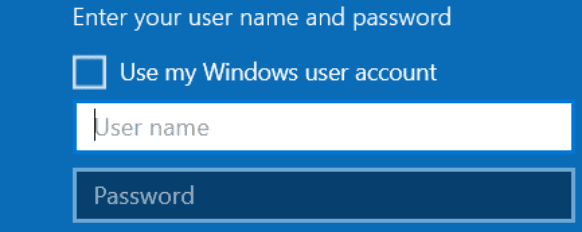
A network authentication box will appear. Enter your school username and password, then click OK.
Confirm Connection
If prompted with "Continue connecting?", click Connect. You should now be connected to the school WiFi.
Troubleshooting
Can't see RNLS_WiFi?
Make sure WiFi is turned on and you're within range of the school buildings. The network may not be available in outdoor areas.
Authentication failed?
Double-check your username and password. Remember, your username is your first name and last name with no space (e.g., johnsmith), not your full email address.
Still having issues?
Visit the IT Help Desk in the Computer Lab at lunch times for assistance.