Adobe Creative Cloud
Install Photoshop, Illustrator, and more
Eligibility Required
Adobe Creative Cloud access is only available to students enrolled in specific subjects. Check if you're eligible below before proceeding.
Eligible Classes
Students in the following classes have access to Adobe Creative Cloud:
Not in one of these classes? Talk to your teacher if you believe you need access for a project.
Setup Guide
Visit Adobe Creative Cloud
Go to the Adobe Creative Cloud website and click Sign in.
Go to Creative Cloud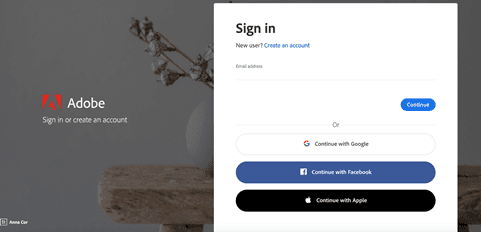
Sign in with Your School Account
Enter your school email address (e.g., johnsmith@my.rnls.school.nz) and click Continue.
Important: When prompted, select Company or School Account (not personal account). This will redirect you to the school login page.
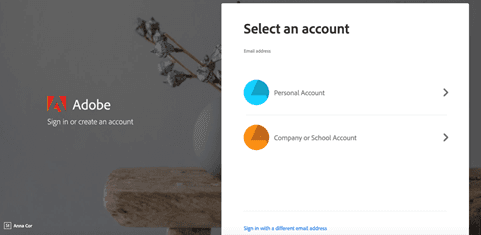
Enter Your School Password
You'll be redirected to the Microsoft login page. Enter your school password and complete any multi-factor authentication if required.
Download the Creative Cloud App
Once logged in, you'll be taken to your Creative Cloud dashboard. Click on Apps in the top navigation to see all available applications.
We recommend downloading the Creative Cloud Desktop App first - this makes it easy to install and update other Adobe apps.
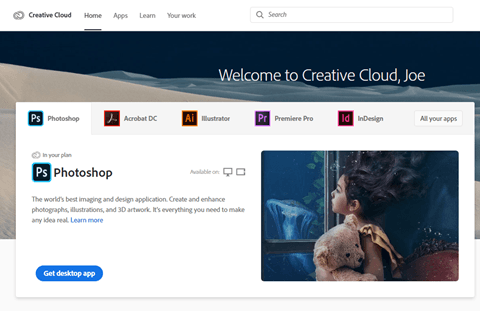
Install Your Apps
From the Creative Cloud Desktop App (or the website), browse and download the apps you need. Click Install next to any app to begin downloading.
Note: Adobe apps are large (1-3 GB each). Make sure you have enough disk space and a good internet connection before downloading.
Popular Apps
Here are some of the most commonly used apps for school projects:
Photoshop
Photo editing and digital art
Illustrator
Vector graphics and illustrations
Premiere Pro
Video editing
After Effects
Motion graphics and VFX
InDesign
Page layout and publishing
Lightroom
Photo editing and organization
Tips for Using Adobe Apps
Save your work to OneDrive
Store your project files in OneDrive so you can access them from school computers and your personal device. This also gives you automatic backups.
Use Adobe Fonts
Your Creative Cloud subscription includes access to thousands of fonts through Adobe Fonts. Activate fonts from the Creative Cloud Desktop App.
Learn with Adobe tutorials
Each Adobe app includes built-in tutorials. Look for the "Learn" tab when you open an app, or visit helpx.adobe.com for detailed guides.
Troubleshooting
"You don't have access" error?
Make sure you're enrolled in an eligible class. If you recently joined a class, it may take 24-48 hours for your access to be activated. Contact your teacher if the issue persists.
Can't sign in?
Make sure you select "Company or School Account" when signing in, not personal account. Use your full school email address (e.g., johnsmith@my.rnls.school.nz).
Installation failing?
Check that you have enough disk space (at least 4GB free). Try restarting your computer and running the installer again. If issues persist, visit the IT Help Desk in the Computer Lab at lunch times.